
So, you need to change number on iPhone? I’ve been there whether it’s because you got a new SIM, you’re helping a family member figure it out, or you just want to update what shows up when you call or text someone.
I’ll be honest, the first time I had to do this, it was a bit confusing. “Change my number” can mean a few different things on an iPhone. But don’t worry after helping plenty of friends (and learning from a few mistakes myself), I’ve figured out exactly how it works.
In this guide, we’ll go step-by-step through every possible way you might want to change number on iPhone from updating it in settings to fixing iMessage or FaceTime when they don’t recognize the new number. I’ll keep it simple, clear.
Table of Contents
Wait Which iPhone Number Are We Actually Changing?
This is where most guides lose people. When you say change my number, you could mean:
- Your actual phone number (the one people dial to call you)
- The number linked to your Apple ID (for signing in and security)
- What your iPhone thinks its own number is (sometimes it gets confused!)
- What shows up on other people’s phones when you call them
- A contact’s number in your address book
See? No wonder it gets confusing! The good news is we’re going to tackle all of these. Just find the section below that matches what you’re trying to do.
How to Get a Brand New Phone Number on iPhone
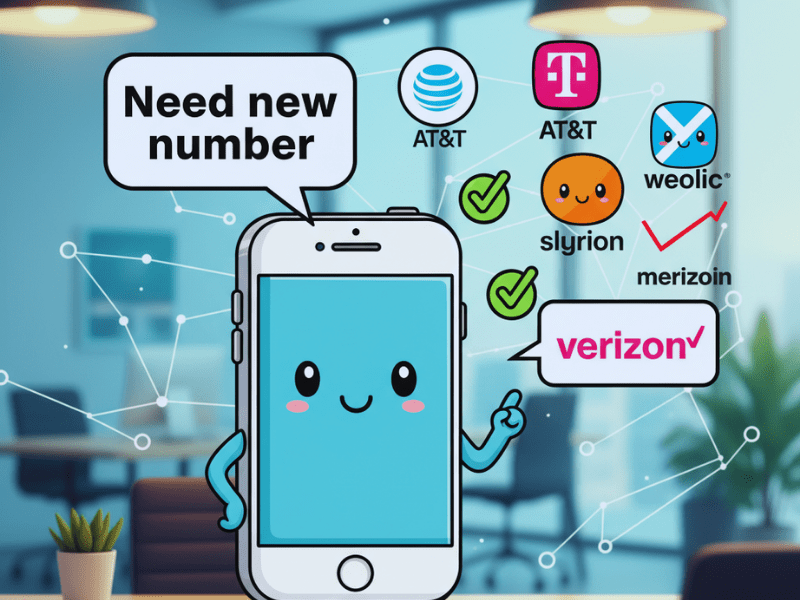
So you want a completely new number that people will use to call and text you? Maybe you’re moving, or need a fresh start, or dealing with those pesky spam calls.
Here’s the thing your iPhone doesn’t tell you: you can’t change your actual phone number in the Settings app. I know, it seems weird, right?
Your phone number comes from your mobile provider – you know, companies like:
- Verizon
- AT&T
- T-Mobile
- Mint Mobile
Think of them as the company that “rents” you your number. They’re the only ones who can give you a new one.
Here’s Exactly What to Do:
- Call your provider’s customer service. This is usually the fastest way. I just did this for my aunt last month – it took about 15 minutes on the phone.
- Have your account info ready. They’ll ask for this to verify it’s really you. Usually your account number and maybe the last four of your social.
- Just say: “Hi, I’d like to request a new phone number for my line.” They do this all day long – it’s totally normal for them!
- Your phone might restart. Once they assign the new number, your iPhone might reboot to apply the change. Don’t panic – this is completely normal.
My tip: If you hate waiting on hold, try visiting your provider’s local store. I’ve found that sometimes it’s quicker to just pop in and have them do it right there.
Update Your Apple ID After Changing Number on iPhone
Okay, this one is crucial – especially if you just got a new number from Part 1. Your Apple ID is like your key to everything Apple: iCloud, App Store, iMessage, you name it.
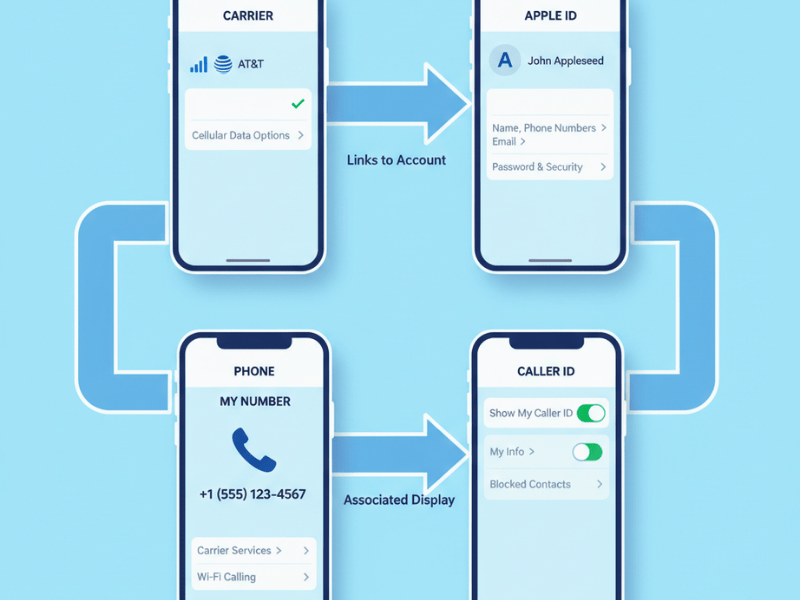
I learned this the hard way when my friend changed her number but forgot to update her Apple ID. She got locked out of her account for two days! Let’s make sure that doesn’t happen to you.
The Easy Way (On Your iPhone):
- Open Settings (that gray gear icon)
- Tap your name right at the top – it’s like your personal profile
- Tap Sign-In & Security
- Hit Phone Number or Email & Phone Numbers
- Here you can add your new number or remove an old one
Quick note: You need to always have at least one phone number or email attached, so you can’t remove your last one.
Or On Your Computer:
- Go to appleid.apple.com.
- Sign in (you might need to enter a verification code – see, security!)
- Click Sign-In and Security
- Click Phone Numbers
Trust me, taking two minutes to do this will save you so much headache later.
When Your iPhone Forgets Its Own Number (So Annoying!)
Has this ever happened to you? You go to your contacts, look at your own card, and it’s… blank. Or it shows your old number. It’s like your iPhone just forgot who you are!
This happened on my dad’s phone last year. He was trying to share his number with someone and couldn’t find it. We fixed it in 30 seconds flat.
Here’s the Quick Fix:
- Open Settings
- Scroll down to Phone (it’s usually about halfway down)
- Tap My Number
- Just type in your correct number (with area code!)
- Hit the back button – it saves automatically
It’s like putting a name tag on your phone so it remembers who it is.
Change What Number Appears When You Call Someone
This is a cool trick not everyone knows about! You can actually control what number people see when you call them.
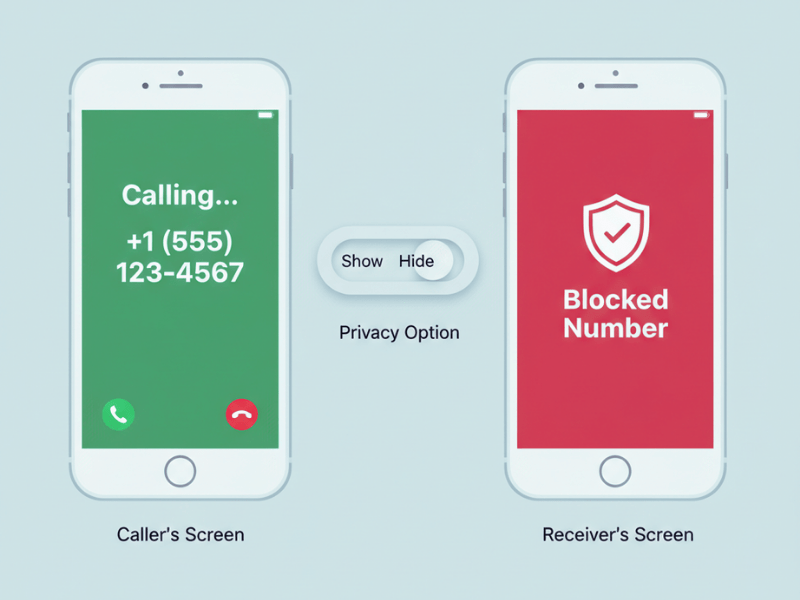
Maybe you want your work number to show up for business calls, or you want to hide your number for privacy when calling someone new.
For One-Time Privacy:
I use this when I need to call about a classified ad or something:
- Open your Phone app
- Dial *67 before the number
- Then type the actual number
- Hit call
To Hide Your Number for All Calls:
Use this carefully! I turned this on once and wondered why nobody was answering my calls. Turns out they didn’t know it was me!
- Settings > Phone
- Tap Show My Caller ID
- Toggle it off (it turns from green to gray)
You can always turn it back on later if you change your mind.
Fix iMessage and FaceTime After You Change Number on iPhone
When you change your number, iMessage and FaceTime can get a little… confused. They’re still looking for your old number!
I see this all the time – people text you and it goes to your old number, or your messages are sending from the wrong number.
Getting Them Back on Track:
For iMessage:
- Go to Settings > Messages
- Tap Send & Receive
- Under “You Can Be Reached By iMessage At,” make sure your NEW number is checked
- You can tap your old number and select “Remove This Email…” to clean things up
For FaceTime:
- Go to Settings > FaceTime
- Tap your Apple ID at the top
- Same deal – make sure your new number is selected
Doing this ensures your messages and FaceTime calls use the right number. It takes 60 seconds and makes everything work smoothly.
How to Update a Friend’s Number on iPhone
While we’re at it, let’s talk about updating other people’s numbers in your contacts. I don’t know about you, but my friends change numbers more often than they change their profile pictures!
- Open your Contacts app (or the Contacts tab in your Phone app)
- Find the person – you can search if you have a lot of contacts like I do
- Tap their name, then hit Edit in the corner
- Tap the old number to change it
- You can also update whether it’s their mobile, home, or work number
- Hit Done when you’re finished
It’s like digital housekeeping – takes two minutes but keeps everything organized.
Common Problems After You Change Number on iPhone (and Fixes)
I’ve helped enough people with this that I’ve seen all the common hiccups. Here are the quick fixes:
My new number isn’t working for iMessage!
- Fix: Go to Settings > Messages and turn iMessage off. Wait 5 seconds, then turn it back on. This is like giving it a fresh start – works 90% of the time!
My phone still shows my old number everywhere!
- Fix: After getting your new number, try restarting your iPhone. If that doesn’t work, just manually type it in Settings > Phone > My Number.
I’m not getting my verification codes anymore!
- Fix: This is probably because your Apple ID still has your old number. Go back to Part 2 and make sure you’ve updated it. If you’re totally locked out, try iforgot.apple.com.
People say my number still shows as blocked!
- Fix: Someone accidentally left this on! Go to Settings > Phone > Show My Caller ID and make sure it’s turned ON (green).
Checklist: Everything to Do When You Change Number on iPhone
To make sure you don’t miss anything, here’s the exact order I recommend:
- Call your provider to get your new carrier number
- Restart your iPhone once the new number is active
- Update “My Number” in Settings > Phone > My Number
- Update your Apple ID with your new number
- Update iMessage & FaceTime settings
- Text your contacts from your new number so they have it!
Final Thoughts
Look, I know this seems like a lot of steps, but I’ve broken it down into the exact same process I use when helping friends and family. Take it one section at a time, follow the steps, and you’ll be fine.
The most important thing is updating your Apple ID after changing your carrier number. That’s the step that causes the most problems if forgotten.
Don’t stress if you get stuck everyone runs into this at some point. If you get stuck on any step, just take a breath and read through it again. You’re definitely not the first person to need help with this!
Have you changed your number before? What was your experience like? Let me know if any of these tips worked for you!
FAQs About Changing Number on iPhone
1. How do I change number on iPhone?
To change number on iPhone, contact your mobile carrier and request a new number. Once it’s activated, go to Settings → Phone → My Number, enter your new number, and restart your iPhone. It should automatically update across iMessage, FaceTime, and your Apple ID.
2. Why does my iPhone still show my old number?
This happens when your device hasn’t synced with the new SIM yet. Open Settings → Phone → My Number, type your updated number, and restart your phone. If iMessage or FaceTime still shows the old number, turn them off and back on in Settings → Messages and Settings → FaceTime.
3. How do I update my phone number on iMessage and FaceTime?
Go to Settings → Messages → Send & Receive and make sure your new number is checked. Do the same in Settings → FaceTime. If the old number still appears, sign out of your Apple ID, restart the iPhone, and sign back in to refresh your connection with Apple’s servers.
4. Can I change my phone number on iPhone without changing my SIM?
Not exactly. Your number is assigned by your carrier through your SIM. You can, however, manually edit what number your iPhone displays under Settings → Phone → My Number, which helps if your phone shows the wrong number.
5. Why is my iMessage sending from the wrong number?
This usually means iMessage hasn’t updated your number yet. Go to Settings → Messages → Send & Receive, uncheck your old number, and ensure your new one is selected under “You Can Be Reached By iMessage At.”
6. How do I remove my old number from iPhone completely?
Go to Settings → Messages → Send & Receive, uncheck your old number, and turn off iMessage. Restart your phone, then turn iMessage back on. Repeat the same steps for FaceTime in Settings → FaceTime.
7. Why isn’t my iPhone updating my new SIM number?
If your iPhone still shows the old number after inserting a new SIM, it might be cached data. Manually enter your new number in Settings → Phone → My Number, then restart. If it still doesn’t work, ask your carrier to refresh your SIM registration.
8. How do I change my number linked to Apple ID?
Visit appleid.apple.com, log in, go to Sign-In & Security → Phone Numbers, and add your new number. You can remove your old one afterward to make sure verification codes and two-factor authentication go to your new number.
9. Do I need to back up before changing number on iPhone?
It’s not required but recommended. Back up your data to iCloud or a computer before making major changes to avoid issues with iMessage, FaceTime, or Apple ID syncing.
10. How long does it take for the new number to activate on iPhone?
Usually, activation is instant once your carrier updates it, but iMessage and FaceTime may take up to 24 hours to fully recognize the new number.
For more iPhone tips, visit Tecknostat.com