
If you are trying to find an app you know you installed but it’s just not there. We’ve all done this. You start thinking, Did I delete it? Did iOS eat it after that update? Don’t worry most of the time, it’s just hiding somewhere.
If you’ve ever wondered how to find hidden apps on iPhone, you’re not alone. Apple has this way of keeping things clean and organized, which is great until you can’t actually find stuff. So here’s what I usually do when an app goes missing simple tricks that actually work.
Table of Contents
1. Try the Search Trick First
Honestly, this one saves time. Just swipe down on your Home Screen (anywhere in the middle) and type the app’s name. If it shows up, good just tap and open it.
If not, it might be turned off through restrictions, or maybe it’s hidden deeper in your layout. Happens a lot after you mess with folders or install new apps.
2. Check the App Library to Find Hidden Apps of iPhone
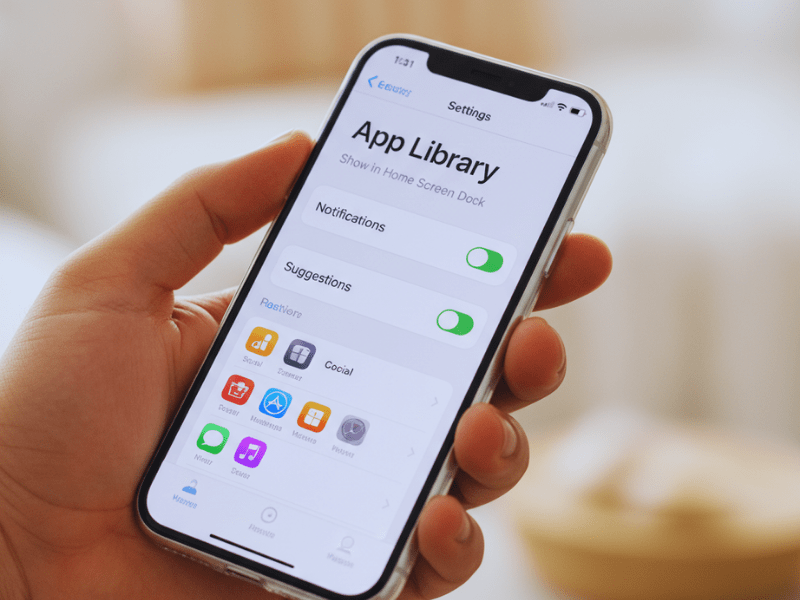
This one’s easy to forget about. Apple added it a while ago it’s that last screen when you keep swiping left. Every single app you’ve got is sitting there, even if you removed it from your Home Screen.
Scroll through or just use the little search bar on top. If you find your app, press and hold it, then drag it wherever you want.
I’ve found apps there that I thought were gone for months.
3. Make Sure You Didn’t Hide a Whole Page
This one gets people a lot. You can actually hide entire screens of apps without realizing it.
Here’s a quick check:
- Long-press on your Home Screen until the icons wiggle.
- Tap the row of little dots just above the dock.
- You’ll see all your pages if one isn’t checked, that’s your missing batch of apps.
- Turn it back on. Done.
Now, you’ll probably have found whatever app disappeared. If not, it’s time to dig a bit deeper.
Other Places to Look for Hidden Apps
So if you’ve already tried search, App Library and all that and your app is still missing there are a few other things to check.
These aren’t super obvious and honestly I only figured them out after messing with my own iPhone randomly.
1.Screen Time Can Hide Apps Without Telling You
This one surprised me the first time it happened. Apple’s Screen Time can hide certain apps completely depending on what settings are turned on.
Here’s how I check:
- Go to Settings → Screen Time → Content & Privacy Restrictions.
Then tap Allowed Apps. - Now look through that list. If the app you’re searching for has the switch turned off that’s why you can’t see it.
Just flip it back on and it’ll reappear like nothing ever happened.
2.Check Your App Store History
This one’s saved me a few times. Open the App Store, tap your profile picture, then tap Purchased → My Purchases.
- There you’ll see everything you’ve ever downloaded even years ago.
- If the app shows a cloud icon it’s been deleted. Tap the cloud and it’ll reinstall.
- If it says Open that means it’s already on your phone somewhere.
I once found an old editing app I thought was gone forever just sitting there.
Siri Actually Helps Here
I don’t use Siri much but this is one of those times she’s actually useful.
Say, Hey Siri, open the app “you want.”
If Siri opens it that means it’s installed but hidden somewhere. Then you can drag it back from the App Library if you want it visible again.
There’s a Thing Called Hidden Purchases Too
Okay this one’s kind of buried. Apple lets you hide apps from your App Store purchase history for privacy but confusing when you forget.
To check open App Store → your profile → Account Settings → Hidden Purchases.
If your app’s there tap the cloud icon to bring it back.
Final Thought on How to Find Hidden Apps on iPhone
If none of that works don’t panic. Sometimes iOS just glitches. I’ve had icons disappear after an update or while moving apps into folders.
When that happens I just reset the Home Screen layout
(Settings → General → Transfer or Reset iPhone → Reset Home Screen Layout).
It’s annoying but it fixes the problem almost every time.
FAQs
1. How can I see hidden apps on my iPhone?
You can use the App Library or the Search feature. Swipe down on your Home Screen and type the app’s name if it appears, it’s installed but hidden. You can also scroll to the last page of your Home Screen to access the App Library and find every app on your device.
2. Can iPhone apps really be hidden?
Yes. Apps can be hidden through Screen Time restrictions, by removing them from the Home Screen, or by hiding entire app pages. You can also hide them from App Store purchases for privacy.
3. How do I find apps hidden by Screen Time?
Go to Settings → Screen Time → Content & Privacy Restrictions → Allowed Apps. If any apps are toggled off, turn them back on to make them visible again.
4. Why can’t I find an app even though it’s installed?
Sometimes iOS glitches or layout changes hide app icons. Try searching for it, checking the App Library, or resetting your Home Screen layout under Settings → General → Reset → Reset Home Screen Layout.
5. How do I unhide apps from the App Store?
Open the App Store, tap your profile icon → Account Settings → Hidden Purchases. If your app is there, tap the cloud icon to re-download it.
6. Can Siri help find hidden apps?
Yes. Say “Hey Siri, open [app name].” If Siri opens it, that means it’s installed but hidden somewhere on your phone.
For more iPhone tips and hidden features, stay tuned to Tecknostat where we simplify smartest tricks.