

When I first tried figuring out how to set up PS5 for real-time strategy games, I honestly didn’t think it would make much difference. But after a few matches, I noticed the lag, the slight delay in unit control it wasn’t smooth at all. A few tweaks later, everything changed. The controls felt tighter, the visuals cleaner, and the response instant. That’s when I realized the PS5 can handle RTS games really well if you set it up right. So, in this guide, I’ll share what actually works, step by step, without the usual overcomplicated tech stuff.
Table of Contents
Optimizing Performance, Display, and Controls for Precise Strategy Gaming
Real-time strategy (RTS) games don’t often get the same spotlight on the PlayStation 5 as shooters or open-world titles but when they do, they demand a different level of precision. Whether you’re managing troops in Company of Heroes 3, planning your empire in Civilization VI, or plotting survival in They Are Billions, the way you configure your PS5 can completely change your gameplay experience.
Why Setup Makes a Real Difference in RTS Games
RTS titles are all about reaction timing, visual clarity, and fluid performance. Even a tiny delay between your command and the console’s response can turn a well-executed strategy into a defeat.
The PS5’s custom RDNA 2 GPU and ultra-fast SSD give it plenty of raw power, but out-of-the-box settings aren’t always tailored for strategic gameplay. A few smart adjustments can make a noticeable impact helping you:
- Reduce input lag for faster command response
- Keep frame rates steady during crowded battles
- Enhance visibility to identify units and resources faster
- Improve sound awareness to catch every battlefield cue
When it comes to strategy, every fraction of a second counts.
Step 1: Optimize Your Display for Real-Time Strategy Games
Clarity and consistency matter more in RTS games than cinematic visuals. Here’s how to tune your PS5 display settings for a clean, tactical view.

1. Switch to Performance Mode
Go to Settings → Save Data and Game/App Settings → Game Presets → Performance Mode or Resolution Mode, then select Performance Mode.
This mode favors frame rate over resolution, which is exactly what you want when scrolling across wide battle maps or issuing rapid commands.
Why it helps: It minimizes stutter and makes your inputs feel more immediate essential when managing multiple units.
2. Adjust HDR and Brightness Carefully
Navigate to Settings → Screen and Video → Video Output → HDR and select “On When Supported.”
Then, calibrate the brightness so dark terrain areas remain visible but not washed out.
Pro Tip: In many RTS titles, you’ll move between bright environments (like deserts) and darker ones (like forests or cities). Keep HDR balanced to avoid glare or overly dim visuals that hide crucial map details.
3. Turn Off Motion Blur and Film Grain
If your RTS game includes these effects, it’s best to disable them. Motion blur and film grain make sense in cinematic titles but in strategy games, they can blur fine map details or make units harder to distinguish.
A crisp, clean image keeps your focus sharp during large-scale movements or quick zoom-outs.
4. Enable “Game Mode” on Your TV
Most modern TVs have a Game Mode option don’t overlook it. Turning it on reduces post-processing and lowers input lag, syncing your PS5’s output directly with your screen.
If your TV supports ALLM (Auto Low-Latency Mode), the PS5 can switch to it automatically for an even faster response.
Step 2: Calibrate the Controller or Go for a Mouse and Keyboard Setup
Playing RTS games with a controller can feel unusual if you’re used to a PC, but the DualSense can actually perform well once it’s tuned properly.

1. Remap Your Buttons for Efficiency
Go to Settings → Accessibility → Controllers → Custom Button Assignments.
Reassign frequent actions (like unit selection or camera switching) to easily reachable buttons such as L1/R1 or the D-Pad.
Tip: Games like Tropico 6 and They Are Billions benefit from smart remaps keeping high-use commands within quick reach reduces hesitation during fast builds or attacks.
2. Reduce Trigger Sensitivity
By default, DualSense triggers are pressure-sensitive great for shooters, but less ideal for RTS inputs where quick taps are key.
Go to Settings → Accessories → Controllers → Trigger Effect Intensity → Weak or Off.
With the trigger resistance lowered, your inputs register instantly perfect for managing time-sensitive actions like deploying reinforcements or canceling a build.
3. Try a Mouse and Keyboard Setup
Some RTS games now support direct mouse and keyboard input on PS5. If your favorite title does, connect them via USB or Bluetooth:
Settings → Accessories → Bluetooth Accessories → Add Device.
Best setup:
- Wired keyboard for stable input
- Compact mouse with DPI between 800–1200 for smoother control at console distance
Step 3: Fine-Tune Your Audio and Play Environment
Sound plays a strategic role too. Subtle effects like a warning horn or the sound of resource harvesting help you react faster to unfolding events.
1. Enable 3D Audio (if supported)
Go to Settings → Sound → 3D Audio for TV Speakers or Headphones, and switch it on.
3D Audio enhances spatial awareness you’ll instantly hear where attacks or notifications are coming from.
For the best results, use wired headphones, as they usually provide lower latency than Bluetooth ones.
2. Balance Chat and Game Audio
In co-op or multiplayer matches, voices can sometimes overpower the game’s alerts. Adjust this at:
Settings → Sound → Audio Output → Volume → Chat/Game Audio Balance.
Keep Game Audio slightly louder so you never miss a crucial alert.
3. Remove Background Noise and Distractions
Strategic play requires focus. Create a clean gaming setup by:
- Lowering environmental noise (AC or fan sounds)
- Sitting closer to the screen for map clarity
- Turning off the controller speaker unless needed
Even these small adjustments can make you react faster and plan smarter during heated battles.
Step 4: Customize the User Interface for Clearer Play
RTS interfaces vary in design, but most modern games allow UI scaling.
Here’s what to check:
- Adjust UI scaling so your minimap and unit stats are clear but not oversized.
- Increase subtitle size for better visibility during busy scenes.
- Try color-blind or contrast-enhancing modes. they often make terrain and faction colors stand out more clearly.
Step 5: Keep Firmware and Games Updated
Sony regularly releases firmware updates that improve latency handling, HDR tone mapping, and overall stability. Game developers do the same fixing bugs or enhancing controls after launch.
Keep both your system and games up to date:
Settings → System → System Software → System Software Update and Settings.
This ensures you’re playing with the latest performance optimizations and avoids unexpected bugs mid-battle.
Step 6: Strengthen Your Network for Lag-Free Strategy
Lag is the silent enemy of every real-time strategy player. One-second delay and your perfectly timed attack might fall apart. So, let’s make sure your connection is as stable and responsive as possible.

1. Go Wired Whenever Possible
Wireless may be convenient, but nothing beats a direct Ethernet connection. If you can, plug your PS5 into the router using a CAT 6 cable. It’s a simple change that drastically cuts down packet loss and ping spikes.
Why it matters:
- Smooth online matchmaking and co-op sessions
- Reduced stuttering during large-scale RTS battles
- Consistent command response
A wired connection might sound old-school, but for competitive play, it’s practically mandatory.
2. Assign a Static IP and Open Key Ports
Your PS5 communicates better with consistent routing. Assigning a static IP address and forwarding specific ports helps ensure a steady connection with PlayStation Network and game servers.
Quick steps:
- Go to Settings → Network → Set Up Internet Connection → Advanced Settings.
- Set IP Address Settings to Manual.
- Assign an IP, then log into your router to open these ports:
- TCP: 80, 443, 3478–3480
- UDP: 3478, 3479
This setup helps prevent NAT-type errors and stabilizes multiplayer RTS sessions ideal for titles like Company of Heroes 3 or Age of Empires IV.
3. Use QoS to Prioritize the PS5
If your router supports Quality of Service (QoS), it’s time to make your PS5 the VIP.
- Locate QoS settings in your router’s control panel.
- Add your PS5’s MAC address.
- Set its traffic priority to Highest.
This prevents other devices like phones, smart TVs, or background downloads from eating into your gaming bandwidth.
4. Keep the Network Clear While Gaming
Even a perfect setup can choke if your network’s overloaded. During RTS gameplay, pause system downloads, streaming, or cloud syncs on other devices. If you stream your sessions, keep the bitrate under 6 Mbps to maintain stable ping.
Step 7: Fine-Tune Game Settings for Top RTS Titles
Every RTS on PS5 behaves a little differently. While the console is powerful, performance and control can vary from one title to another. Here’s how to get the most out of popular RTS games:
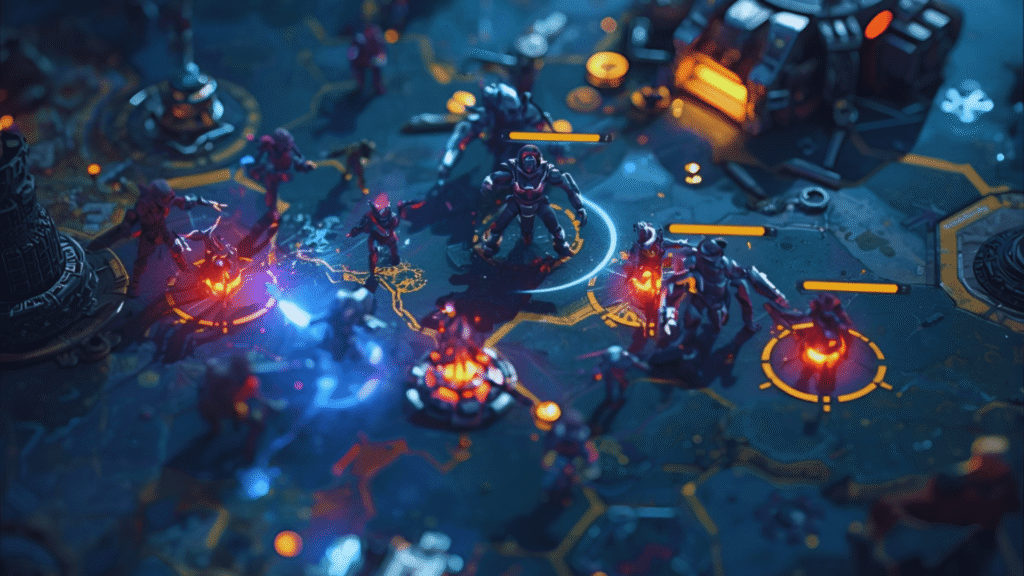
1. Company of Heroes 3
- Use Performance Mode for the steadiest frame rate.
- Lower camera zoom speed to keep your focus sharp during chaotic battles.
- Map quick group selections to L1/R1 or D-pad directions for smoother control.
This setup keeps your attention where it matters strategy, not system lag.
2. Civilization VI
- Disable the Turn Timer if you’re playing co-op or competitive matches online.
- Set UI Scale to around 90–100% for 4K displays.
- Change Autosave to “Every 3 Turns” for fewer mid-match pauses.
Civilization VI rewards patience, and these tweaks make marathon sessions easier on both your system and your focus.
3. Age of Empires IV: Console Edition
- Choose Balanced Mode it blends strong visuals with stable performance.
- Switch to the RTS Classic Control layout for PC-like accuracy.
- Try the Strategic Focus sound mix to highlight audio cues like alerts and unit commands.
Step 8: Keep Your Console Cool and Consistent
Long RTS sessions can push your PS5 hard, especially when you’re managing hundreds of units. Heat buildup can lead to minor frame drops or fan noise spikes but it’s easy to manage with a few habits.

1. Watch for Performance Dips
If you notice sluggish menus or camera stutters mid-battle, close any unused background apps or captures. This frees up system memory instantly.
2. Maintain Proper Airflow
- Keep at least four inches of space on all sides.
- Avoid tight, enclosed shelves.
- Dust vents every few weeks using compressed air.
3. Optional: Cooling Stands or Vertical Docks
While not essential, a vertical cooling dock can help with long play sessions. It’s an easy way to keep the temperature stable and extend the console’s lifespan especially if you’re gaming for hours daily.
Step 9: Adjust Accessibility for Strategy Comfort
RTS games often rely on visual clarity and fine control. Tweaking accessibility features can make a surprisingly big difference.
1. Scale Text and Menus for Readability
Head to Accessibility → Display → Text Size and slightly increase it. It’s easier on your eyes during long sessions, especially when reading small resource stats.
2. Calibrate Vibration Feedback
Adjust DualSense vibration strength to your preference. A mild rumble when your base is under attack gives subtle feedback without distraction.
3. Enable Color Correction or High Contrast Mode
If you play games where factions share similar tones, high-contrast visuals make spotting units and resource points much easier.
Step 10: Keep Performance Sharp Over Time
A tuned console can still slow down over time if it’s not maintained. These few steps will keep your PS5 optimized for every future RTS release.
1. Clear Cache and Rebuild the Database
Every few months, reboot your PS5 into Safe Mode and select Clear Cache and Rebuild Database. It’s a safe process that reorganizes system files, eliminating lag or delay in game menus.
2. Keep Storage Free
Leave at least 15–20 GB open at all times. RTS games generate frequent autosaves and patch data, which can slow performance if your SSD is nearly full.
3. Watch Controller Battery Levels
Low battery = higher latency. Keep your DualSense charged above 50% or connected via USB-C for the most responsive input.
4. Back Up Settings via Cloud
If you customize controls heavily, enable PS Plus Cloud Backup to save your configuration. It saves time if you ever need to reset your console.
Step 11: Best Real-Time Strategy Games for PS5 (2025 Picks)
If you’re ready to put your optimized setup to the test, here are a few standout RTS titles that shine on PS5 right now.
| Game | Why It’s Worth Playing | Avg. Performance |
|---|---|---|
| Company of Heroes 3 | Deep, tactical gameplay with smooth 60 FPS performance | 60 FPS |
| Civilization VI | Perfect for long-term strategy fans; intuitive console UI | 60 FPS |
| Age of Empires IV | Faithful to the PC experience, now optimized for console | 60 FPS |
| They Are Billions | Handles massive on-screen swarms effortlessly | 60 FPS |
| Iron Harvest: Complete Edition | Great visuals and satisfying controller precision | 60 FPS |
Step 12: Final Setup Checklist Before You Play
Here’s a quick recap to make sure your PS5 is fully ready:
✅ Performance Mode enabled
✅ Wired network connection established
✅ Controller mappings customized
✅ Text/UI scaled properly
✅ Cache cleared and space available
✅ Latest firmware and game patches installed
Double-checking these ensures you get stable frame rates and low latency every single time you play.
Final Thoughts On The Ultimate RTS Setup on PS5
Setting up your PS5 for real-time strategy games isn’t just about fancy graphics it’s about creating an environment where your reactions and decisions translate instantly on-screen.
Once you’ve optimized visuals, network, and input, you’ll notice how effortless commanding large armies or building empires feels. The difference is subtle at first, but after a few sessions, you’ll never want to go back to default settings again.
With this setup, your PlayStation 5 becomes more than just a gaming console it becomes your tactical command hub, ready for any strategic challenge that 2025’s best RTS games can throw at you.