
Samsung has always done things a little differently compared to stock Android, and the Samsung One UI App Drawer is a great example. While some Galaxy owners love it for keeping their home screen clean, others prefer disabling it altogether for an iPhone-like layout.
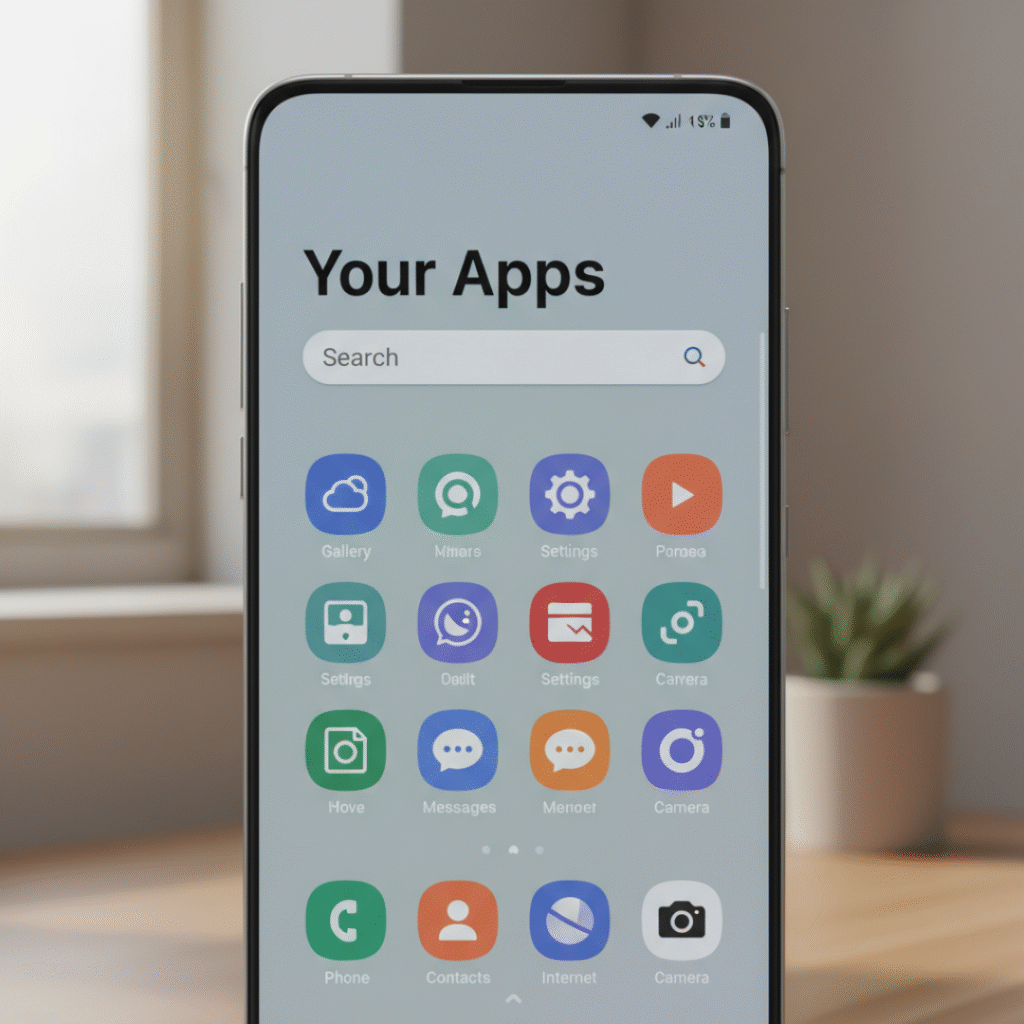
With One UI 7.0 (Android 15) rolling out in 2025, Samsung has made a few changes to the app drawer that users have been asking about for years including a long-awaited vertical app drawer option. But along with new features, there’s also confusion: missing buttons, layout changes, and different sorting methods that affect how the app drawer looks.
If you’ve just picked up a Galaxy S24 Ultra, Z Fold 6, or any other Samsung device running One UI, here’s everything you need to know about the Samsung One UI App Drawer from what it is, how it works, customization tricks, and even fixes for common issues.
for more tech related news keep connected at Tecknostat
Table of Contents
What is the Samsung One UI App Drawer?
The App Drawer in Samsung’s One UI is essentially a catalog of all the apps installed on your phone. Unlike the home screen, which you can customize with shortcuts and widgets, the app drawer acts as a complete library where every single app whether downloaded from Google Play, Galaxy Store, or pre-installed by Samsung can be found.
- Purpose: Keeps the home screen neat while still giving you quick access to apps.
- Access: A simple swipe-up gesture or the optional app drawer button on the navigation bar.
- Customization: Grid size, folder creation, sorting, and even background transparency.
In short, the Samsung One UI App Drawer is not just a list of apps; it’s a flexible hub that can adapt to different types of users. Whether you’re a minimalist who wants a clutter-free home screen or a power user who needs everything neatly organized, the app drawer gives you that balance.
The Evolution of the Samsung One UI App Drawer
If you’ve been using Galaxy phones for a while, you’ll know that the Samsung One UI App Drawer hasn’t always looked or behaved the same way. It has quietly evolved with every major One UI update, sometimes in small ways, and other times with changes that fans didn’t always agree on.
Back in the early days of One UI (around 2018), Samsung stuck with the horizontal swiping layout for the app drawer. It felt familiar for Galaxy users, especially those coming from older TouchWiz devices. As time went on, updates added extra grid sizes, smoother animations, and more ways to hide or show the app drawer button at the bottom of the screen.
By the time One UI 6.0 landed, the drawer looked cleaner and more modern, but users still complained that it felt outdated compared to the vertical scrolling style found on stock Android phones like Google’s Pixel series. Many Galaxy owners had been asking Samsung for years to add a vertical option and with One UI 7.0 (based on Android 15), Samsung finally did it.
The One UI 7.0 App Drawer Change
Here’s where things get interesting: Samsung didn’t simply give us a toggle for “vertical vs horizontal.” Instead, the layout now depends on how your apps are sorted.
- Choose Alphabetical Order, and the app drawer automatically switches to a vertical scroll.
- Switch to Custom Order, and it goes back to the classic horizontal swipe layout.
On paper, that sounds simple. But in practice, a lot of users were confused at first because the option isn’t labeled as a layout setting. It’s hidden inside the sorting menu.
Why Samsung Did This
It looks like Samsung is trying to offer both experiences without overcomplicating the settings. The vertical drawer makes Galaxy phones feel closer to Google’s Pixel phones, while the horizontal option keeps things familiar for long-time Samsung fans.
So if you’ve just updated to One UI 7.0 and suddenly noticed your Samsung One UI App Drawer looks different, don’t worry. you can switch it back. It’s all about how you sort your apps.
How to Switch Between Vertical and Horizontal App Drawer Layouts
If you’ve updated your Galaxy phone to One UI 7.0, chances are you opened the app drawer and thought: “Wait, why is everything scrolling up and down now?” Don’t panic. you didn’t lose the classic horizontal app drawer. Samsung just tied the layout to your sorting method, which makes it feel a little hidden.
Here’s exactly how you can switch between the two styles:
Step 1: Open the App Drawer
- Swipe up from the home screen, or tap the App Drawer button (if you have it enabled at the bottom of the screen).
Step 2: Access the Sort Menu
- Look at the bottom-right corner of the app drawer, next to the search bar.
- Tap the three-line button (sort menu).
Step 3: Choose Your Layout (via Sorting)
- Select Alphabetical Order → Your apps will now appear in a vertical scrolling drawer.
- Select Custom Order → Your apps return to the horizontal swiping drawer.
Step 4: Clean Up Empty Pages (Optional)
If you switch back to horizontal layout, you might notice that some pages look half-empty. That’s because of how apps are arranged when switching between layouts. To fix this:
- Open the sort menu again.
- Tap Clean up pages.
- The drawer will automatically remove extra blank spaces.
Quick Summary
- Alphabetical order = Vertical drawer
- Custom order = Horizontal drawer
- Use Clean up pages to tidy things up if the layout looks messy.
It takes less than a minute to switch, but since Samsung didn’t label this as a “layout option,” many people miss it at first. Once you know the trick, though, it’s super easy.
Customization Options in the Samsung One UI App Drawer
One of the best things about the Samsung One UI App Drawer is that it isn’t just a static list of apps. Samsung knows people like their phones to look and feel a certain way, so the app drawer comes with a bunch of customization options to make it your own.
Here are the key ways you can tweak it:
1. Change the Grid Size
Want more apps per page or prefer bigger icons so everything’s easier to see?
- Go to Settings > Home Screen > App Screen Grid.
- Choose from different layouts (4×5, 5×6, 6×6, and even 6×7 on newer Galaxy models).
Bigger grids = more apps per page. Smaller grids = larger, cleaner icons.
2. Adjust the Background Transparency
If you don’t like the default blurry background behind your app drawer, you can tone it down.
- Long-press on the home screen.
- Tap Settings.
- Use the Background Blur slider to make the app drawer more or less transparent.
This small tweak makes a big difference if you want your wallpaper to stand out.
3. Organize with Folders
Yes, you can create folders directly inside the app drawer not just on the home screen.
- Drag one app onto another to create a folder.
- Name it anything you want (e.g., “Social,” “Work,” “Games”).
- You can even color-code the folder background for easy recognition.
4. Show or Hide the App Drawer Button
By default, most Galaxy phones let you open the app drawer with a swipe-up gesture. But if you’re old school and like having a dedicated button, Samsung lets you bring it back.
- Head to Settings > Home Screen.
- Toggle Show Apps Button on or off.
5. Turn App Suggestions On or Off
At the top of the app drawer, Samsung sometimes shows “Suggested apps” based on your usage. Some people love it, others find it distracting.
- To disable: Go to Settings > Home Screen > Suggestions and toggle it off.
6. Hide Apps You Don’t Want to See
Got pre-installed apps you never use but don’t want to uninstall? You can hide them from the app drawer:
- Go to Settings > Home Screen > Hide Apps.
- Select the apps you want gone. They’ll disappear from the app drawer but remain installed.
Why Customization Matters
The Samsung One UI App Drawer is one of the most flexible in the Android world. Whether you want a Pixel-like minimal layout or a packed grid with everything at your fingertips, Samsung gives you the tools to shape it to your style.
And the best part? All of these tweaks can be undone in seconds. So don’t be afraid to experiment your Galaxy phone won’t lock you into one setup.
Common Issues with the Samsung One UI App Drawer (and How to Fix Them)
No matter how polished Samsung’s software gets, the One UI App Drawer still has its quirks. If you’ve recently updated to One UI 7.0, chances are you’ve already run into at least one of these little annoyances. The good news? Most of them are easy to sort out once you know where to look.
The “Where Did My App Drawer Button Go?” Problem
A lot of Galaxy users panic the first time they swipe around and realize the little button for the app drawer is missing. Samsung hides it by default now, since you can just swipe up to open it. But if you’re used to tapping that button, it feels like something’s broken.
👉 Fix: Head into Settings > Home Screen and simply toggle Show Apps Button back on. The icon will reappear at the bottom of your screen.
Apps Disappearing from the Drawer
Ever installed an app and then… nothing? You can’t find it in the drawer at all. Nine times out of ten, it’s because the app is hidden sometimes by you, sometimes thanks to a setting reset after an update.
👉 Fix: Go to Settings > Home Screen > Hide Apps and uncheck the missing apps. They’ll pop back up instantly.
Why Is My App Drawer Scrolling Up and Down Now?
This is the big one with One UI 7.0. A lot of users opened their phones after updating and thought Samsung had completely killed the old horizontal app drawer. Nope it’s still there, just buried in sorting options.
👉 Fix: Open the app drawer, tap the little sort button next to the search bar, and pick Custom Order if you want the classic sideways swipe. If you prefer the new vertical style, stick with Alphabetical Order.
Messy Pages After Switching Layouts
If you switch between vertical and horizontal, the layout can look broken, with half-empty pages and apps scattered around.
👉 Fix: Use the Clean up pages option in the same sort menu. It pulls everything together so you’re not staring at a bunch of blank space.
The Drawer Feels Slow or Laggy
On some devices, the app drawer can stutter a bit, especially if you’re using a heavy wallpaper or theme. It’s not common on newer flagships like the Galaxy S24 Ultra, but mid-range phones sometimes show it.
👉 Quick fixes: Restart your phone, try a simpler wallpaper, or clear out cache and unused apps in Device Care.
Accidentally Turned the App Drawer Off Entirely
If your phone suddenly looks like an iPhone with all your apps sitting on the home screen don’t worry, you didn’t break anything. Samsung lets you disable the app drawer completely.
👉 Fix: Go to Settings > Home Screen, and under Home Screen Layout, pick Home and Apps screens to bring it back.
Why These Problems Keep Happening
Samsung’s flexibility is both a blessing and a curse. The Samsung One UI App Drawer gives you more options than stock Android, but sometimes those options are hidden behind menus that aren’t obvious. Once you know where to look, though, most of these “problems” take less than a minute to fix.
Samsung One UI App Drawer vs Stock Android and iOS
The Samsung One UI App Drawer is often compared to what you’ll find on Google’s Pixel phones or Apple’s iPhone. At first glance, they all serve the same purpose a place to access your apps. But the differences in design and philosophy are huge, and they’re worth pointing out if you’re trying to decide which style you prefer.
One UI App Drawer vs Stock Android (Google Pixel)
On Pixel phones running stock Android, the app drawer has always been vertical by default. You swipe up, and every app is neatly arranged in a long, scrollable list. Simple, no frills.
Samsung now offers that same vertical option in One UI 7.0, but with a twist: you can still go back to the horizontal swiping style that Galaxy users are used to. This dual approach is something stock Android doesn’t offer.
- Pixel advantage: Clean, straightforward, no confusion.
- Samsung advantage: Flexibility vertical and horizontal layouts, plus more customization like grid sizes and folders.
One UI App Drawer vs iOS (iPhone App Library)
iPhones technically don’t have a traditional app drawer at all. Instead, Apple introduced the App Library in iOS 14, which automatically sorts apps into categories. It’s efficient, but also very “Apple-like” in the sense that you don’t get much control. You can’t rearrange apps freely you’re stuck with Apple’s organization.
Samsung, on the other hand, puts you in charge. Don’t like auto-sorting? Fine. Want to drag apps into custom folders? Go for it. Prefer to hide apps altogether? Easy.
- iPhone advantage: Minimalist, automatic organization. Great if you don’t want to think about it.
- Samsung advantage: Freedom. You decide how apps look, where they go, and whether you even want the app drawer button at all.
Which One Is Better?
It really comes down to what kind of user you are:
- If you want simplicity, Google’s stock Android drawer or Apple’s App Library might suit you.
- If you want control and flexibility, the Samsung One UI App Drawer easily wins.
What makes Samsung stand out is that you don’t have to pick one philosophy over the other. Want Pixel-style vertical scrolling? Done. Want the old-school Galaxy horizontal swipe? Still there. That balance of choice is what keeps long-time Samsung fans happy.
Tips & Tricks for Getting the Most Out of the Samsung One UI App Drawer
Most Galaxy users just swipe up, tap an app, and never think twice about the app drawer. But the Samsung One UI App Drawer is way more capable than it seems at first glance. Once you learn a few hidden tricks, it can genuinely change the way you use your phone every day.
Search Isn’t Just for Apps
That search bar at the top of the drawer? It’s underrated. A lot of people think it only finds apps, but it actually ties into Samsung’s Finder tool. That means you can type “Wi-Fi,” and it’ll take you straight into Wi-Fi settings. Or type a contact’s name, and you can message them directly. It’s one of those little shortcuts that saves you from digging through menus.
Long-Press Is Your Friend
Here’s something many Galaxy users miss: long-pressing icons inside the app drawer. Let’s say you hold down the Camera app suddenly, you get quick shortcuts like jumping straight to selfie mode. Do the same with Messages, and you can jump into your most recent conversation without opening the full app first. Once you get used to this, it feels clunky going back to just “tap and wait.”
Hiding Apps When You Need to Disconnect
We all have apps we don’t want to see all the time. Work emails, Slack, or even that game you can’t stop opening late at night. Samsung lets you hide apps from the drawer completely. I know people who do this just for weekends hide their work apps on Friday, unhide them on Monday. It’s a neat way to create some digital boundaries without uninstalling anything.
Organize Smarter, Not Harder
Folders inside the drawer are often overlooked. But if you group your most-used apps into themed folders Social, Work, Games you’ll spend way less time scrolling. Bonus: you can color-code folders to make them pop. My “Work” folder is blue, my “Social” folder is yellow. At a glance, I know exactly where to tap.
Grid Size: More Apps, or Bigger Icons
The app drawer grid is another thing worth playing with. If you hate flipping through multiple pages, switch to a larger grid (like 6×7 on the Galaxy S24 Ultra). But if your thumbs are tired of tapping tiny icons, drop down to a 4×5 grid with big, bold icons. It’s one of those personal preference tweaks that makes your phone feel “yours.”
Don’t Forget the Clean-Up Button
Here’s a small one, but it’s gold: the “Clean up pages” option. If you ever notice weird gaps or half-empty pages after uninstalling apps or switching layouts, just tap it. Boom everything reorganizes itself instantly. No dragging and dropping for half an hour.
Why These Little Tweaks Matter
The truth is, the app drawer is something you use dozens of times a day without thinking. A few smart adjustments like hiding distractions, setting up folders, or making use of search can make a Galaxy phone feel way faster and less cluttered. That’s what makes the Samsung One UI App Drawer stand out compared to stock Android or iOS: it’s built for people who actually want control.
The Future of the Samsung One UI App Drawer
The Samsung One UI App Drawer has already gone through a quiet evolution from being horizontal-only to now supporting vertical scrolling in One UI 7.0. But if you look at Samsung’s history, you know this is just the beginning. Samsung rarely leaves core UI elements untouched for too long, and the app drawer could be next in line for bigger changes.
Smarter Organization with AI
AI is slowly finding its way into every corner of our phones, and it’s not hard to imagine Samsung using it to make the app drawer smarter. Think about an app drawer that automatically bubbles up the apps you use most during certain times of the day. Open Spotify in the morning? Instagram at night? Imagine the app drawer anticipating that and serving them up front and center.
Samsung already has features like Modes & Routines, which automate phone behavior. Tying that intelligence into the app drawer feels like a natural next step.
More Customization — Because That’s Samsung’s DNA
If you’ve used a Galaxy phone for a while, you know customization is one of Samsung’s strongest selling points. We could see even more control over the Samsung One UI App Drawer in future updates:
- Adjustable icon sizes without changing the grid.
- Theme-based folders that adapt to your wallpaper.
- Smarter app hiding, where hidden apps can still show up in search if you allow it.
These are the kinds of tweaks that Samsung fans always ask for small, quality-of-life upgrades that make daily use feel smoother.
Borrowing (and Improving) From iOS and Android
It’s no secret that Samsung sometimes borrows ideas from competitors but they rarely stop there. Apple’s App Library introduced a new way of organizing apps, and Google’s Pixel launcher is known for its no-nonsense simplicity. Don’t be surprised if Samsung merges the best of both worlds, while still keeping its own signature flexibility.
Imagine an optional “smart categories” view in the app drawer, where your apps get grouped automatically but unlike iOS, you can still rearrange and rename those categories. That’s very “Samsung” giving users control without forcing it.
What Users Want Next
If you scroll through Galaxy forums or Reddit threads, two requests pop up constantly:
- Faster animations. Even though the app drawer looks polished, some users feel the animations can be snappier.
- More layout options. Vertical and horizontal are great, but some users want hybrid layouts or even infinite scroll instead of pages.
Samsung listens more than people give them credit for. The addition of the vertical drawer in One UI 7 proves that. So there’s a decent chance that these requests could shape what the app drawer looks like in One UI 8.0 or even One UI 9.0.
The Bottom Line
The Samsung One UI App Drawer is no longer just a static grid of apps. It’s becoming smarter, more customizable, and more user-driven with each update. Looking ahead, we’re likely to see a blend of AI-driven intelligence and even deeper personalization because that’s the sweet spot where Samsung usually excels.
Final Thoughts on the Samsung One UI App Drawer
The Samsung One UI App Drawer might sound like just another launcher feature, but it’s really a window into how Samsung approaches user experience. Unlike Google’s “simple and clean” Pixel interface or Apple’s rigid App Library, Samsung puts control in the user’s hands.
Whether you prefer the classic horizontal swipe, the new vertical scroll, or a fully customized folder system, One UI adapts to your style. That’s what makes it stand out: it’s not just about launching apps, it’s about letting you decide how you want your phone to work.
And with the way One UI is evolving from smarter AI features to deeper customization the app drawer is likely going to become even more powerful in future updates. If anything, the changes in One UI 7.0 show that Samsung is finally listening to years of user feedback.
In short: the One UI app drawer is no longer an afterthought. It’s a flexible, evolving feature that reflects why Samsung remains the king of Android customization.
FAQs About the Samsung One UI App Drawer
1. Can I switch between vertical and horizontal layouts?
Yes. When apps are sorted alphabetically, the drawer becomes vertical. When sorted by custom order, it switches back to horizontal. You can change this anytime from the sort menu.
2. How do I hide apps in One UI?
Go to Home screen settings > Hide apps. From there, you can choose which apps should disappear from the app drawer. They won’t be uninstalled, just hidden until you bring them back.
3. Can I completely remove the app drawer?
Yes. If you prefer the iPhone-style approach, you can disable the drawer entirely and keep all apps on the home screen. Just toggle this option in the Home screen settings.
4. Why does Samsung offer both vertical and horizontal drawers?
Because Galaxy fans asked for it. Many users love the traditional side-swipe style, while others prefer the efficiency of scrolling vertically. Samsung decided to offer both instead of forcing one layout.
5. What’s next for the app drawer in One UI?
Based on trends, expect more AI integration, smarter app organization, and even deeper customization options like new grid sizes, faster animations, and possibly hybrid layouts.
6. Is the One UI app drawer better than iOS App Library?
It depends on your preferences. iOS offers simplicity and automation, but Samsung gives you more freedom and control. If you like tailoring your phone to your exact style, One UI is the winner.