
We all do ask for such things many times a day because it is necessary or even just to see the time on the phone, respond to a message, or scroll through the social media feeds.The first thing that strikes our eyes is the home screen.
If it’s haphazard filled with random apps and widgets it appears disorganized. If it is organized, you can find what you need very easily, and therefore, your phone would feel smoother when using it.
That’s what exactly the power of good layout does: not just how it looks, but how it defines speed and ease of use daily. A smart layout on a Samsung phone helps you save time, declutter, and feel your Galaxy like new all over again. This is why Samsung phone layout ideas and Samsung home screen customization are becoming so popular among users.
Samsung knows this, which is precisely what their One UI is about customization. Unlike stock Android, One UI has features that let you give your phone a particular look and feel, not by using third-party applications. It’s all there you just need to know where to look. If you’ve ever searched for how to customize Samsung home screen, the answers are already built inside your phone.
Table of Contents
Samsung Layout Settings
Very basic settings regarding Samsung Layout Settings:
Navigate through: Settings → Home screen.
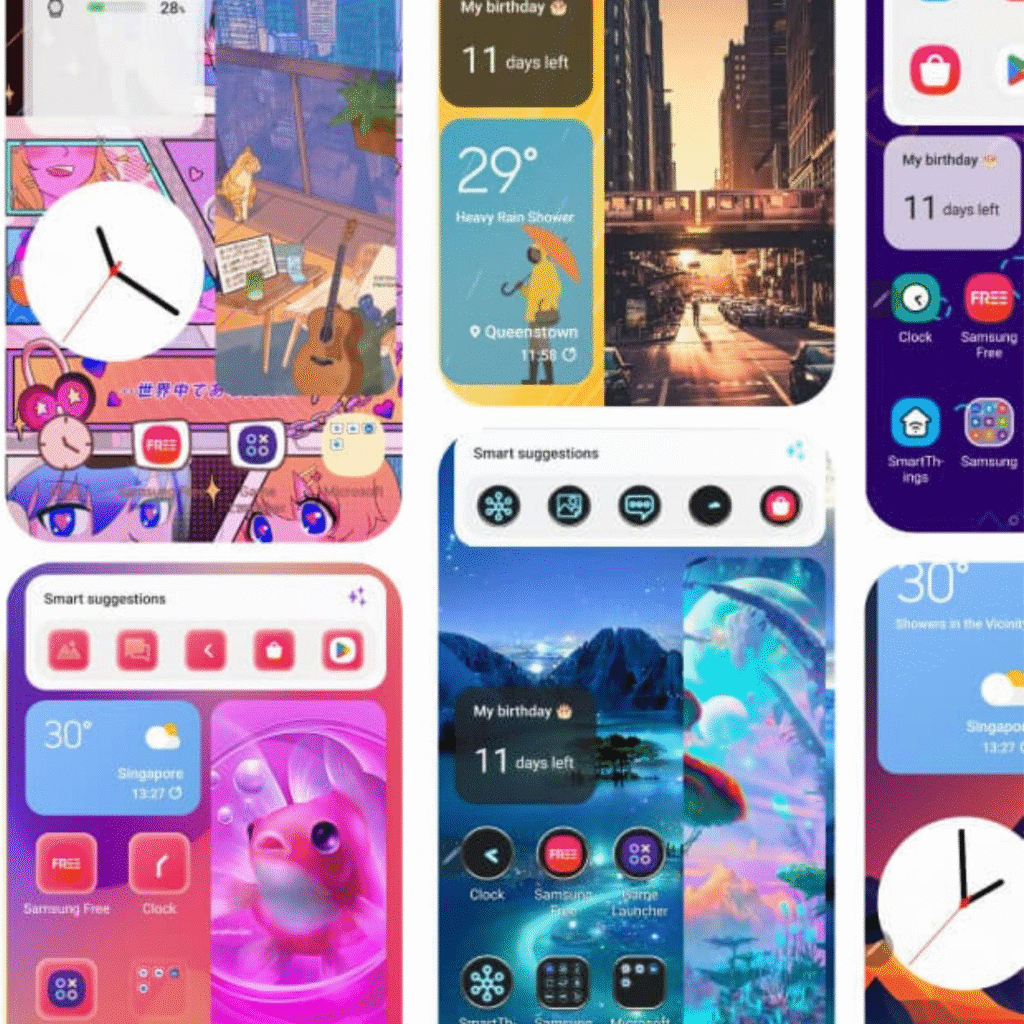
Here are the main options for personalizing your Samsung home screen:
App Grid
Choose how many rows and columns of apps show on one screen. A 5×6 grid would mean packing in more icons, while a 4×5 grid gives more breathing space. Adjusting your Samsung app grid is one of the easiest ways to customize your layout.
Folders
Combine apps by dragging one on top of another. Great for sorting categories such as Social, Work, Games, or Shopping. Proper app organization makes finding apps faster and keeps your home screen clean.
App Drawer
Choose if you want all apps visible on the home screen (like iPhone) or tucked away in a drawer you swipe up to access. This is a key feature of Samsung home screen customization.
Widgets
Place tools like weather, calendar, music, or battery status right on your home screen. Widgets are essential for how to customize Samsung home screen layouts for quick access.
Edge Panels
Swipe from the side to quickly open shortcuts or features like clipboard, contacts, or your favorite apps. This is one of the unique features of Samsung One UI customization.
Hide Apps
Keep apps private without uninstalling them. Perfect for banking or personal tools you don’t want visible. This also contributes to a clean Samsung phone layout.
Themes and Wallpapers
Change the look of icons, backgrounds, and even menus. Aesthetic changes are part of Samsung home screen customization.
Good Lock for Advanced Layouts
Should you wish to control more features, download Good Lock from the Galaxy Store. This will unlock great advanced modules like Home Up, which lets you customize grids, taskbars, folders, and even how your recent applications show up. Using Good Lock is a popular way to enhance Samsung home screen customization beyond the basic settings.
For power users, this allows full control over Samsung phone layout ideas without needing third-party launchers. With Good Lock, you can tweak almost every aspect of your home screen to match your workflow or entertainment preferences.
What to Do First to Improve the Layout
If If your present layout feels messy, here is a quick refresher for how to customize Samsung home screen layouts:
- Pick a Grid Size – Choose an appropriate style-based grid for you. Smaller grids look more minimal. Bigger grids give you access to many apps at one time. Adjusting your Samsung app grid is the first step to a cleaner layout.
- Sort Apps into Folders – Group together similar apps. Label folders accordingly like “Work,” “Social,” or “Media.” Proper app organization improves daily efficiency.
- Place Essentials on the Dock – Phone, Messages, Camera, plus possibly a daily app (WhatsApp or Gmail) down the bottom. Your Samsung app dock should contain only what you use the most.
- Try to Limit to Just 2 Widgets – Do not overload. Clock + Weather or Calendar + Notes are sufficient for most people. Widgets help in Samsung phone layout ideas for faster access.
- Go for a Calm Wallpaper – Backgrounds reflect on how busy your phone appears. A plain light or dark simple design is predictable. This is part of overall Samsung home screen customization.
- Hide Rarely Used Apps – Declutter by hiding apps that you don’t touch on a daily basis.
Such small changes can make your Samsung feel faster and personal. Once the basics are set, you can explore more advanced Samsung phone layout ideas tailored to your lifestyle.
Samsung Phone Layout Ideas for Every Lifestyle
Not all people use their phones for the same thing. A student desires study gadgets instantly, while a professional requires fast access to emails and calendars. Others focus on entertainment, games, streaming, or social media.
These Samsung phone layout ideas will help you customize your device according to your needs, making your Samsung home screen customization both practical and enjoyable.
1. Minimalist Layout – Simple and Clean
Less is more in the minimalist setting, as it cuts clutter and drives focus purely on what matters.
How to do it:
- 4×5 grid for fewer icons, part of Samsung app grid customization.
- Only applications that are a must on the first screen Phone, Messages, Camera, Browser.
- Move anything else to the app drawer or organized folders, improving app organization.
- Use one clean widget, like clock or weather, for Samsung home screen customization.
- Choose a plain wallpaper, such as pale pastel or black ceiling.
It conditions your screen to feel calm. This layout is ideal for people who are easily distracted or want a light and uncluttered Samsung phone layout.
2. Productivity Layout – Tailored for Work and Multitasking
If you use your Samsung for work or studying, a productivity layout saves time.
How to do it:
- Use Edge Panels for shortcuts to Email, Calendar, Notes, and Cloud apps part of Samsung One UI customization.
- Split Screen Mode: Open two apps at once (e.g., notes and browser) a smart Samsung phone layout idea for multitasking.
- Add a to-do list or calendar widget to the home screen.
- Set up Bixby Routines: During work hours, show work apps; after hours, switch to personal apps useful for Samsung home screen customization.
- Keep your dock filled with essential tools like Gmail, Teams, or Slack.
This setup helps multitask efficiently and stay organized throughout busy days.
3. Entertainment Layout – Meant for Fun
Your phone can be a portal for games, films, and music.
How to do it:
- Store Game Launcher in the dock for quick access part of Samsung app dock optimization.
- Put Netflix, YouTube, and Spotify in a folder on the first screen.
- Create a music widget for fast controls without unlocking the phone.
- Make the lock screen rich with media shortcuts.
- Brightly colored or animated wallpapers for engaging Samsung home screen customization.
One tap can shift your phone from work mode to fun mode.
4. Social Media Layout – Fast Connect to Stay
For heavy social media users, a social-first layout is logical.
How to do it:
- Place your top three social apps in the dock for one-tap access part of Samsung app dock customization.
- Add a search widget for fast access to hashtags or posts.
- Use Samsung’s Theme Store to customize icon colors, aiding Samsung home screen customization.
- Create a folder of editing tools like Canva, Lightroom, or InShot next to your social apps.
- Add a shortcut to the gallery for quick access to photos.
This keeps your social media apps organized and easily accessible, improving Samsung phone layout ideas for daily use.
5. Advanced Layouts – Power Users
For users who want full control:
- DeX Mode: Plug into a monitor to use your phone like a desktop advanced Samsung phone layout idea.
- Galaxy Watch + Buds Sync: Use the Galaxy Wearable app to synchronize shortcuts and notifications across devices.
- Third-party launchers: Nova Launcher or Smart Launcher add extra grids, gestures, and icon packs.
- Good Lock Modules: Home Up, Task Changer, and ClockFace allow further Samsung home screen customization.
How to Preserve Your Layouts
- To keep your Samsung phone organized and efficient, follow these tips for Samsung home screen customization:
- Maintain monthly decluttering: Remove apps that are abandoned or rarely used to improve app organization.
- Change wallpapers often: Brings freshness to your Samsung phone layout ideas without major changes.
- Limit widgets: Too many widgets can slow your phone and clutter your Samsung home screen customization.
- Save layouts: Backup your setup on Samsung Cloud to avoid losing your Samsung phone layout after updates.
Conclusion
The Samsung phone layout ideas can easily be made simple. With One UI, you already have everything needed to create a layout that complements your life.
If you want a screen that is free from clutter, go minimal. If you need a layout to help you get things done, choose a productivity layout. Next, you can set up an entertainment layout fun and colorful. Then there are complex setups with DeX, Good Lock, and third-party launchers giving you full control over your Samsung home screen customization.
In essence, it is all about balance between pretty and practical: your phone should work for you, not the other way around. Start small, experiment, and update over time. Once you organize your setup, you’ll notice how fast, smooth, and personalized your Samsung phone layout feels.
FAQs
1. How can I customize my Samsung home screen?
You can customize your Samsung home screen using One UI settings. Adjust the app grid, add widgets, use folders, and pick wallpapers or themes. For advanced options, try Good Lock modules like Home Up or Task Changer.
2. What is the best Samsung phone layout for productivity?
A productivity layout keeps essential apps like Email, Calendar, Notes, and cloud tools on the first screen. Use Edge Panels for shortcuts, add a to-do list widget, and enable Split Screen Mode for multitasking.
3. How do I make a minimalist Samsung phone layout?
Choose a 4×5 grid, place only essential apps on the main screen, use one simple widget, and pick a plain wallpaper. This keeps your home screen clean and easy to use.
4. Can I hide apps on my Samsung phone?
Yes! Go to Settings → Home screen → Hide apps. You can keep apps private without uninstalling them, perfect for banking or personal apps.
5. What is Good Lock and should I use it?
Good Lock is a Samsung app from the Galaxy Store that allows advanced customization. You can tweak your app grid, folders, task switcher, and widgets. It’s ideal for users who want full control over their Samsung phone layout ideas.
6. How can I sync my Samsung layout with Galaxy Watch and Buds?
Use the Galaxy Wearable app to sync shortcuts and notifications across devices. You can also use your watch for quick replies, and Buds for notifications in routines, keeping your setup efficient.
7. What is DeX Mode and how does it help my layout?
DeX Mode lets you connect your Samsung phone to a monitor, turning it into a desktop-like interface. You can arrange apps in windows, multitask like on a PC, and have a more productive Samsung phone layout.
8. How often should I update my Samsung home screen layout?
It’s good to declutter monthly, remove unused apps, limit widgets, and occasionally change wallpapers. This keeps your layout fresh and your phone smooth.
9. Can I backup my Samsung phone layout?
Yes! Use Samsung Cloud to save your layout settings. This ensures you don’t lose your custom Samsung home screen setup during software updates or phone changes.
10. What’s the easiest way to organize apps on Samsung?
Start by grouping apps into folders (Work, Social, Media), limit main screen apps to essentials, and use the app drawer for less-used apps. This improves app organization and speed.
If layouts interest you, you’ll also love our breakdown of Samsung One UI App Drawer that improve daily use.